
Students may occasionally experience technical issues during their tutoring sessions. Below are recommended troubleshooting steps to help resolve the most common problems.
1. Clear the Browser’s Cache
Clearing the browser’s cache can help fix issues related to page loading, video/audio lag, or login problems.
How to Clear the Cache in Google Chrome:
- On your computer, open Chrome.
- At the top right, click the three-dot menu > Settings > Privacy and security > Clear browsing data.
- Select the All time time range.
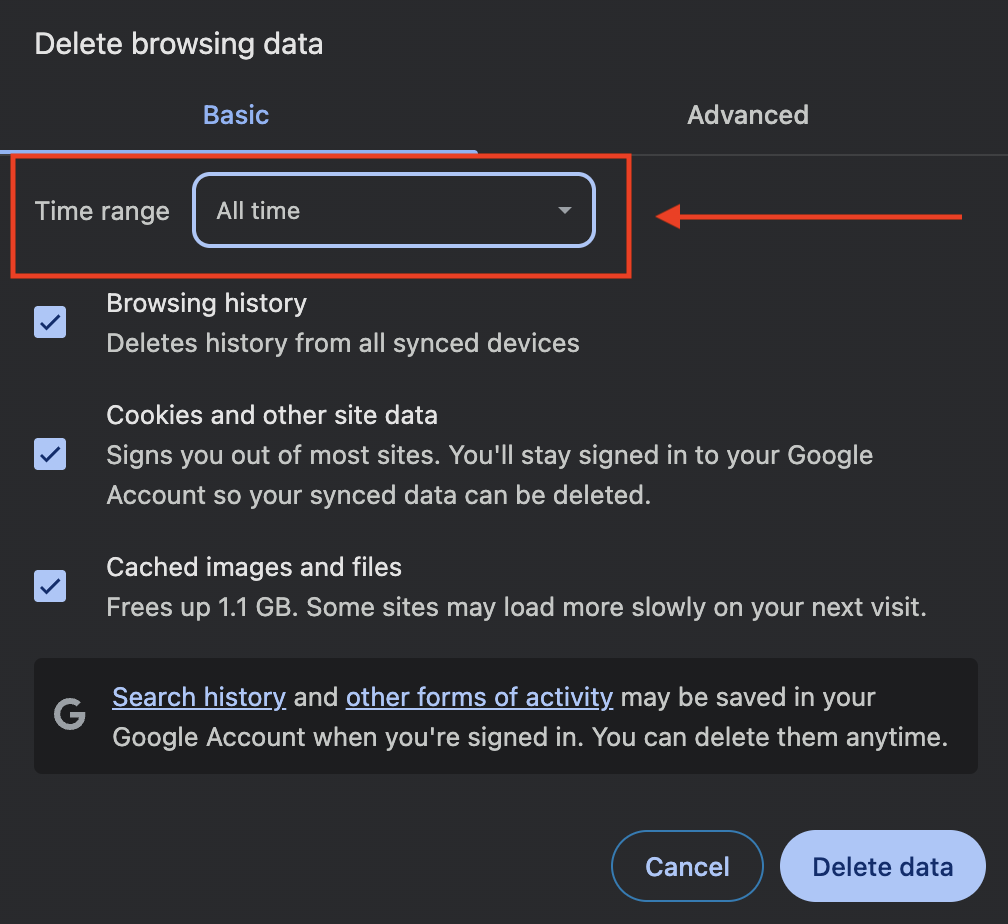
- Check Cached images and files (and optionally other data you want to clear).
- Click Clear data.See additional instructions on clearing browser history and cache.
2. Run a Speed Test
Ensure your internet connection meets the platform’s requirements.
- Visit https://fast.com
- Allow the test to complete automatically.
- Take a screenshot of the result.
- Recommended speeds: At least 10 Mbps download / 5 Mbps upload
3. Run a Pre-Call Test (for Video Session Issues)
If the student is unable to join the session or is experiencing audio/video issues:
- Use the platform’s Pre-Call Test Tool
-
Let the test run fully and take a screenshot of the results.
This helps determine whether the student’s camera, microphone, or network is causing problems.
4. Try a Different Browser
Switching browsers can isolate whether the issue is browser-specific.
- Recommended browsers: Google Chrome, Safari, Firefox, Edge, Opera
- Reopen the session link in a different supported browser and check if the problem persists.
5. Try a Different Device (If Available)
If issues continue on the current device, test access from another device (e.g. second laptop). This helps identify whether the problem is device-related.
Reach out to our Customer Support team
If none of these steps resolve the issue, please reach out to our Support Team with a detailed description of the problem, the troubleshooting steps taken, and any screenshots you've gathered. We’re here to help ensure a smooth, successful learning experience and will be glad to assist further.